
How to clean up iCloud Drive and the Files app on iPhone
· by Davyd Hruts
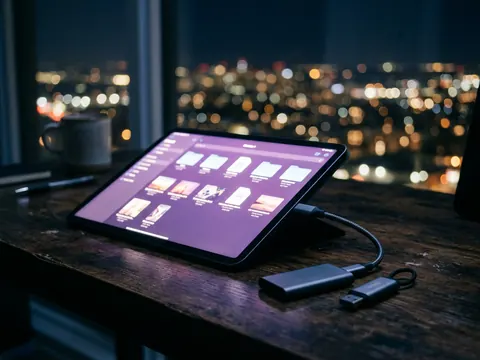
Check Settings, your name, iCloud to see how much iCloud Drive takes. Then in the Files app open iCloud Drive, switch to list view and sort by Size to find the largest files. Delete what you do not need, use Remove Download for files you want to keep in iCloud but not on the phone, and empty Recently Deleted in Files, or the space comes back only after 30 days.
1. See what iCloud Drive takes
Settings, then your name, then iCloud shows a bar of what fills your iCloud storage: Photos, Backups, iCloud Drive, Messages and the rest. If iCloud Drive is the big one, the steps below are for you. If Photos is, the photo guides on this site are a better start.
2. Find the largest files
- Open the Files app and tap iCloud Drive.
- Tap the menu button, choose List, then sort by Size.
- Open folders one at a time: Downloads and old app folders are the usual suspects.
- Touch and hold a file you do not need and choose Delete.
3. Free the phone without deleting from iCloud
A file in iCloud Drive may also be stored on the phone. Touch and hold it and choose Remove Download: it stays in iCloud and on your other devices, and the copy on the phone goes.
4. Empty Recently Deleted
Deleted files wait 30 days in Recently Deleted in the Files app, under Locations, and still count against iCloud until then. Open it and choose Delete All to get the space now. Deleting in iCloud Drive deletes on every device signed in to the same account.
Other places that fill the Files app
- On My iPhone: downloads from Safari and attachments saved from mail.
- App folders: video editors and podcast apps keep exports and caches there.
- External drives and memory cards, which do not count against the phone but fill up just the same.
Questions
Does deleting from iCloud Drive delete from my iPhone?
Yes. iCloud Drive is one set of files on every device. To free only the phone, use Remove Download instead.
Where is Recently Deleted in Files?
In the Files app, open Browse; Recently Deleted is under Locations.
Why did my iCloud storage not go down after deleting?
The files are still in Recently Deleted for 30 days. Empty it to get the space back now.